
Create Your Deals
Deals are the main way customers discover your restaurant on Let’sChow.
Examples of deals:
- Lunch specials
- Happy hour offers
- Combo deals
- Discount promotions
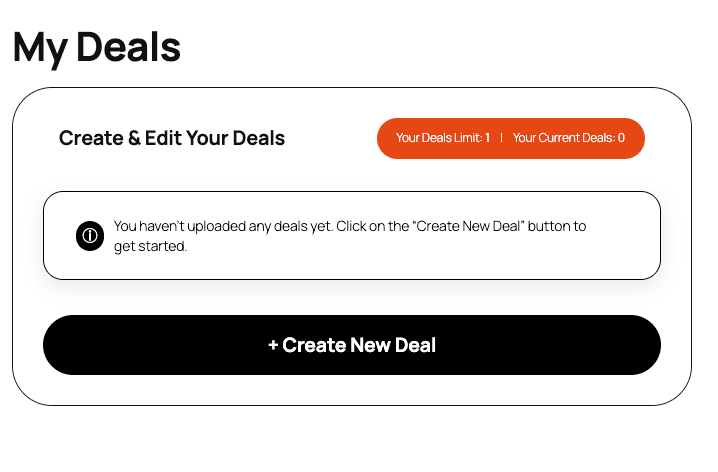
- To create your deal, go to My Deals and select “+ Create New Deal”
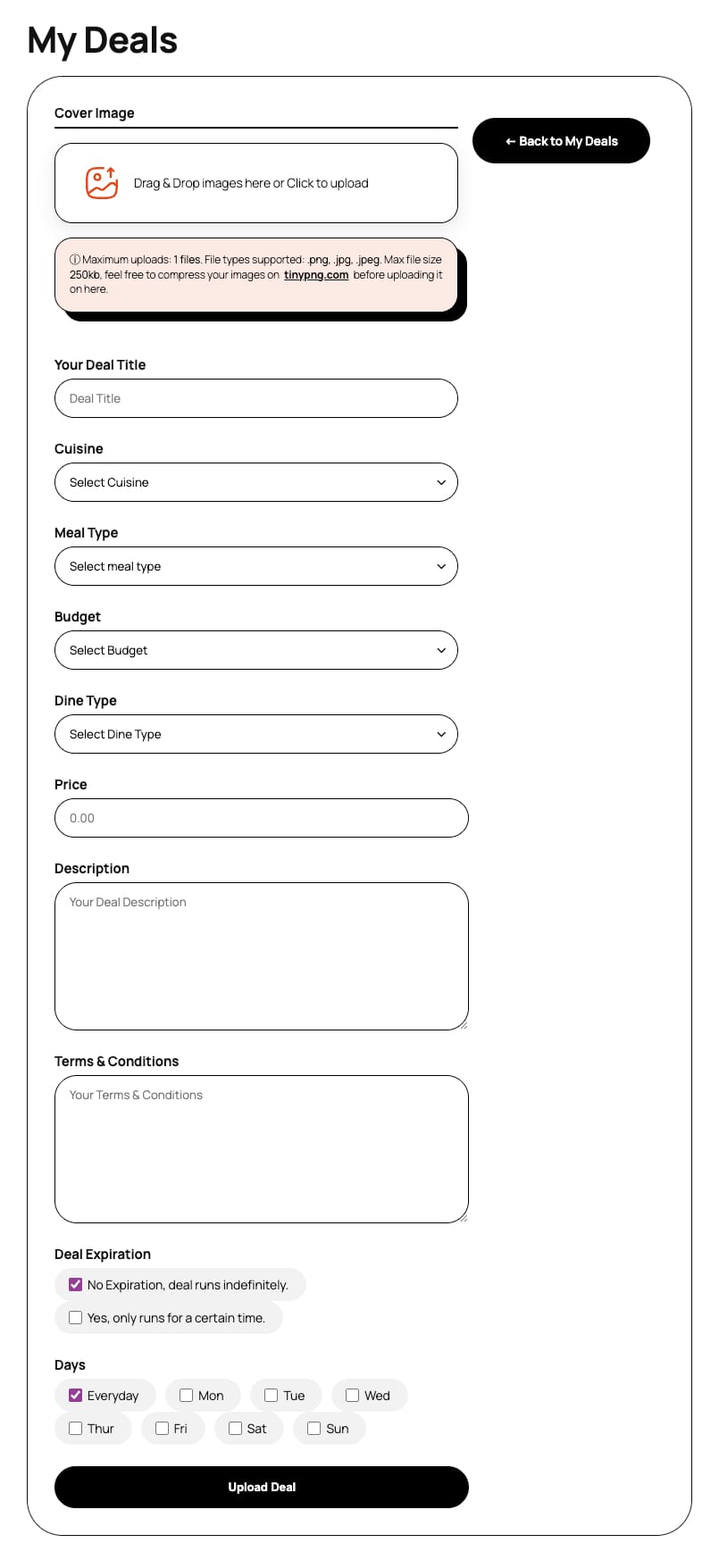
- When creating a deal, you will need to add information to the following:
- Deal Cover image – The deal cover image is the main image that represents your deal across LetsChow. It is the first thing customers see when browsing deals, so it plays a big role in whether someone clicks on your offer.
- Your deal cover image is displayed in:
- Deal listings
- Restaurant pages
- Featured deal sections
- Deals map popups
- Good Eamples:
- A close-up of a burger + fries for a combo deal
- Sushi platter for a sushi special
- Cocktails for a happy hour deal
- What to avoid:
- Big image files, it will be rejected on upload
- Blurry or low quality photos
- Too dark or poorly lit photos
- Photos Overloaded with text (preferably no text)
- Generic stock images that don’t match your food
- Logos only (use your logo in the restaurant profile, not here)
- ⓘ Maximum uploads: 1 files.
- ⓘ File types supported: .png, .jpg, .jpeg.
- ⓘ Max file size 250kb, feel free to compress your images on tinypng.com before uploading it on here.
- Your deal cover image is displayed in:
- Deal title – The deal title is the first thing users see when browsing deals.
- It should be:
- Clear
- Short
- Attractive
- A good deal title quickly tells users what they’re getting.
- Examples:
- “2-for-1 Burger Special”
- “R99 Lunch Combo”
- “Half Price Sushi Wednesdays”
- 💡 Tip: Focus on the offer + value.
- It should be:
- Cuisine – Cuisine describes the type of food that the deal offers.
- This helps users filter and discover relevant deals.
- Examples:
- Italian
- Mexican
- Sushi
- Burgers
- 💡 Tip: Choose the cuisine that best represents your core offering, not everything on your menu.
- Meal Type – Meal Type tells customers when the deal is best suited.
- This helps customers find deals based on time of day.
- Examples:
- Breakfast
- Lunch
- Dinner
- Drinks / Happy Hour
- All Day
- 💡 Tip: Match the deal to when customers are most likely to use it.
- Budget – Budget helps users understand the price level of your deal.
- It’s used for filtering deals across the platform.
- Options:
- R → Budget-friendly
- RR → Mid-range
- RRR → Premium
- 💡 Tip: Be honest — setting the correct budget improves trust and conversions.
- Dine Type – Dine Type tells users how they can redeem the deal.
- Options:
- Dine In → Must be used at the restaurant
- Takeaway → Can be collected
- 💡 Tip: If your deal is flexible, consider allowing both options.
- Options:
- Price – The price shows the cost of the deal offer.
- This can be only be a fixed price (e.g. R99 or R250)
- 💡 Tip: Make the value obvious — users should instantly understand the savings.
- Description – The description gives more detail about the deal.
- Use this space to explain:
- What’s included
- Portion sizes
- Special items
- Why it’s a great deal
- Example:
- “Enjoy a juicy beef burger with fries and a soft drink for only R99. Available weekdays during lunch hours.”
- 💡 Tip: Keep it simple and easy to scan — avoid long paragraphs.
- Use this space to explain:
- Terms & Conditions – Terms & Conditions explain any rules or limitations for the deal.
- This helps avoid confusion and sets clear expectations.
- Examples:
- Valid Mondays to Fridays only
- Not valid on public holidays
- Limited to one deal per table
- While stocks last
- Booking required
- 💡 Tip: Always include anything that might affect the customer experience.
- Deal Expiration – Deal Expiration sets how long the deal is available.
- This creates urgency and helps keep deals relevant.
- Options:
- No expiration (ongoing deal)
- Specific end date
- 💡 Tip: Limited-time deals often perform better because they create urgency.
- Days – Days specify which days of the week the deal is available.
- This helps users plan when to visit.
- Examples:
- Monday – Friday
- Weekends only
- Wednesdays only
- Daily
- 💡 Tip: Be specific — this reduces customer frustration.
Once published, your deal will appear in the Let’sChow deal listings and on the deals map.